Managing Your Dashboard
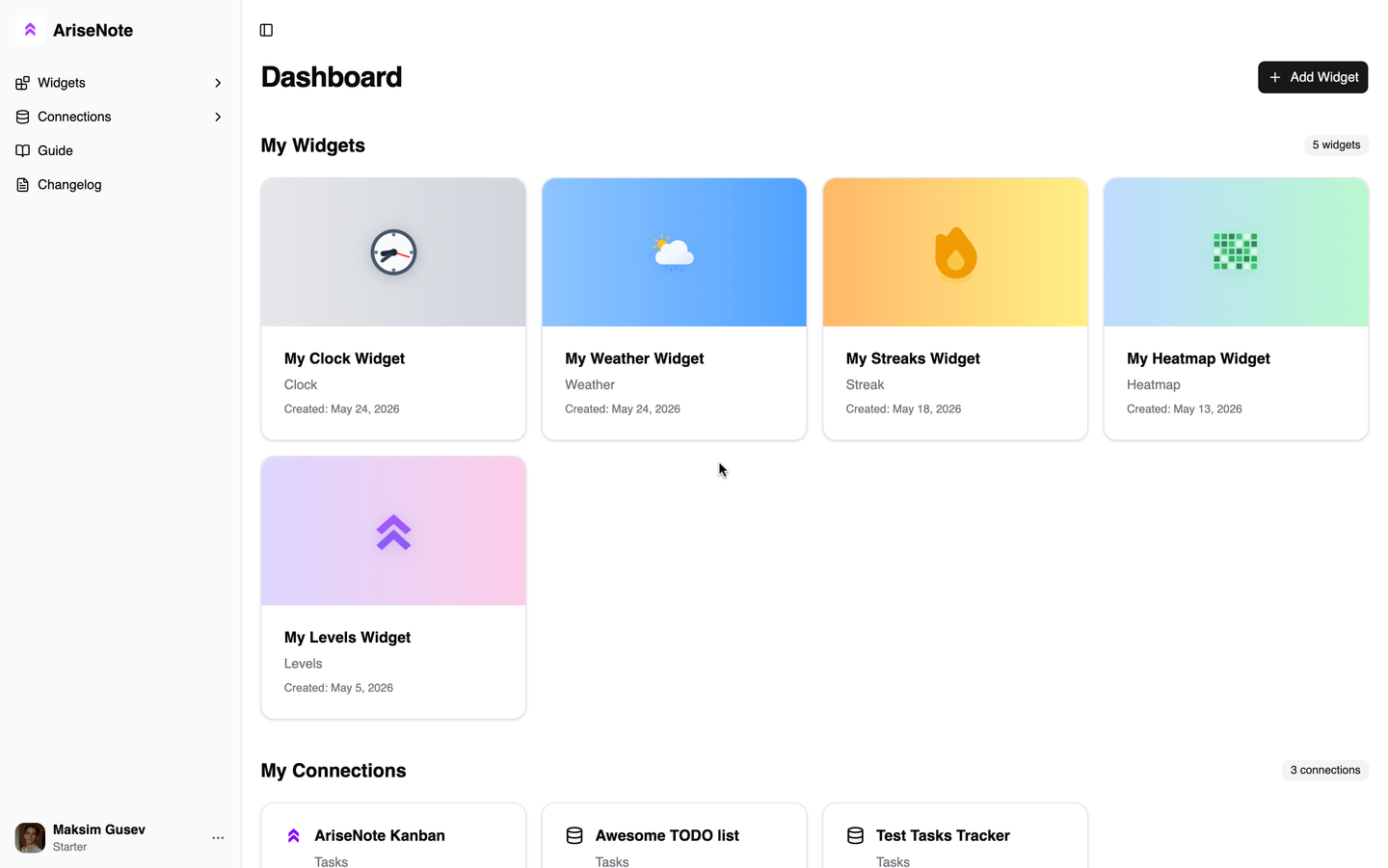
The dashboard is your home base for all widgets and connections. From here you can create new widgets, edit existing ones, manage database connections, and copy embed links.
Dashboard Layout
The dashboard shows:
- Widget cards — one card per widget with type, name, and quick actions
- Connections list — linked Notion databases with their type (Tasks or Habits)
- Create Widget button — opens the widget creation wizard
Creating a Widget
- Click Create Widget in the top-right corner.
- Follow the wizard steps for your chosen widget type.
- The new widget appears on the dashboard when creation completes.
See Creating Widgets for the full walkthrough.
Editing a Widget
- Click a widget card on the dashboard.
- The widget editor opens with a settings panel on the left and a live preview on the right.
- Change any configuration option — changes reflect in the preview immediately.
- Settings save automatically.
See Widget Configuration for more information.
Widget Actions
Copying the embed link
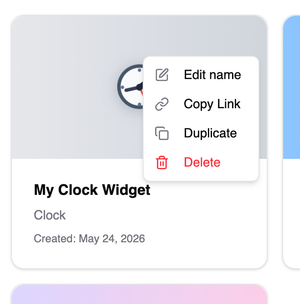
Click on the menu of the widget and click Copy Link to copy the embed URL to your clipboard. Paste it into any Notion page as an embed block.
Renaming a widget
Choose Edit name from the menu of the widget and enter a new name.
The name of the widget is only used in the dashboard and does not appear in the Notion embed.
Deleting a widget
Choose Delete from the menu of the widget and confirm the deletion.
Deleting a widget removes all configuration you made, and all usages of this widget in Notion will show an error.
Duplicating a widget
Choose Duplicate from the menu of the widget to create a new widget with the same configuration. This will also copy all connections to the new widget.
Managing Connections
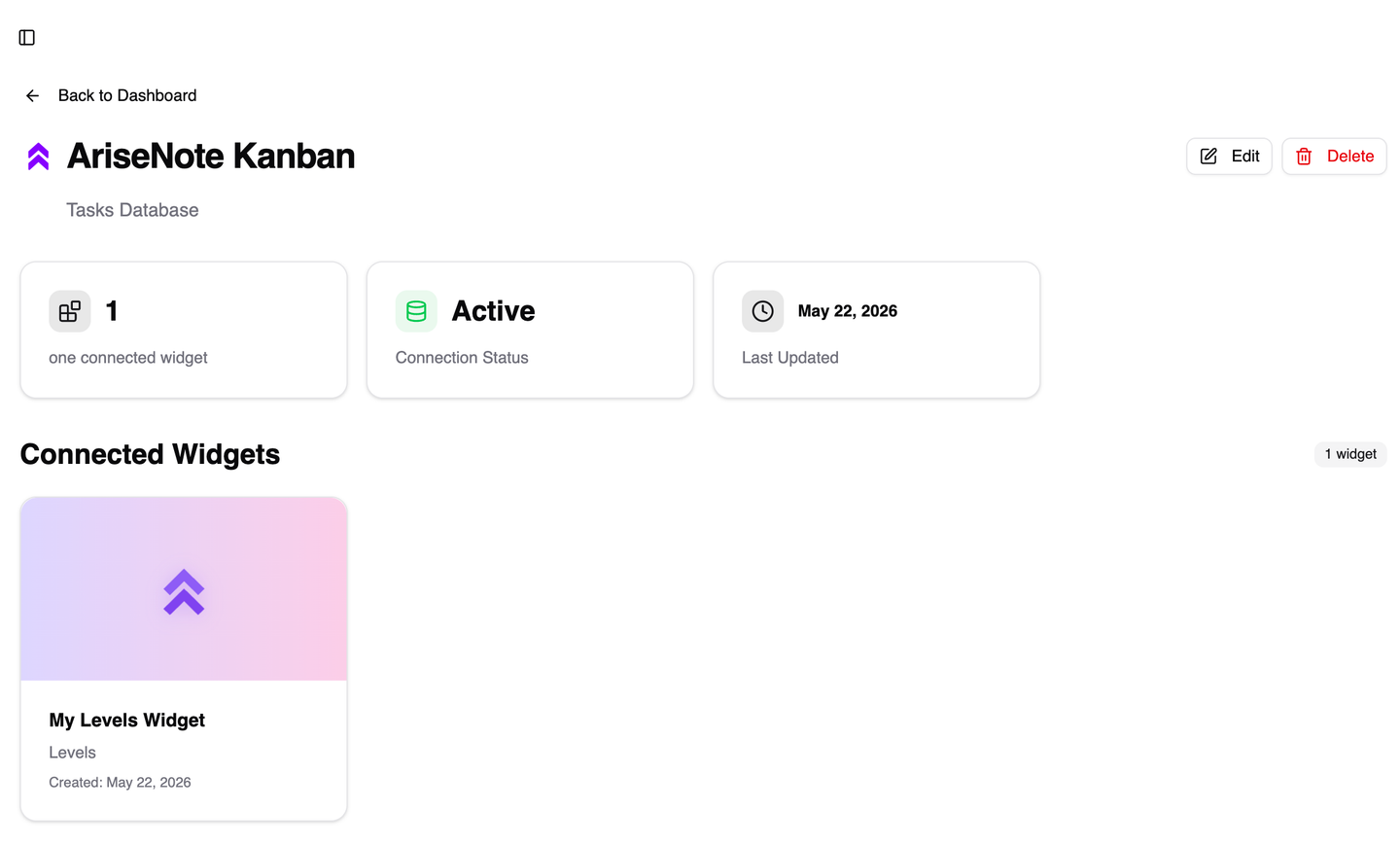
Viewing a connection
Click a connection in the dashboard connections list to open its detail page.
- Database name and connection type
- Which widgets currently use this connection
- Last updated timestamp
Editing a connection
From the connection detail page, click Edit to open the connection editor. You can update:
- Field mappings
- Status mapping (Tasks)
- Assignee filter (Tasks)
- XP settings
See Connections for configuration details.
Deleting a connection
From the connection detail page, click Delete. You will be warned about how many widgets depend on this connection. Deleting a connection breaks data sync for all linked widgets.
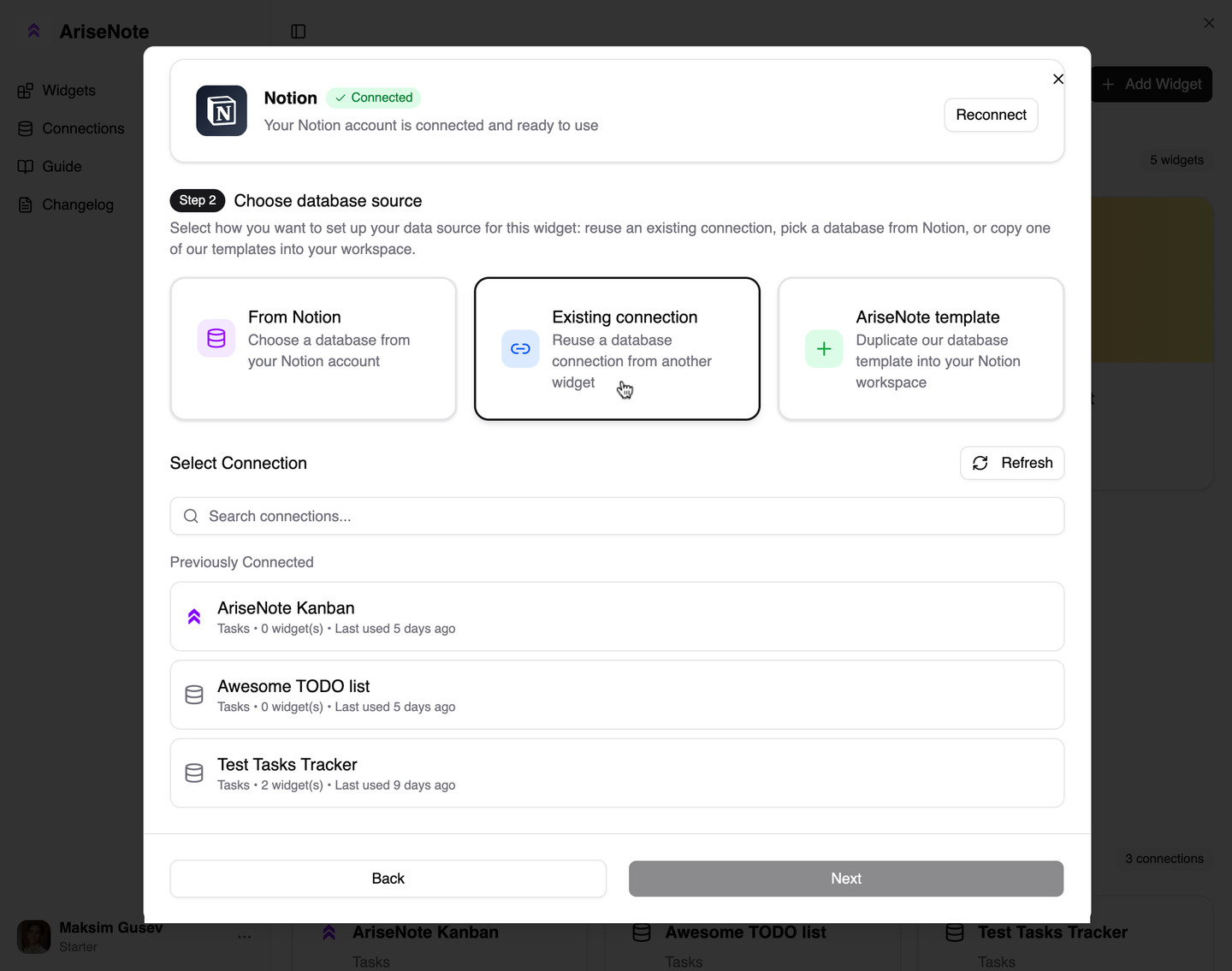
Attaching connections to widgets
When creating a widget, you can choose an existing connection instead of linking a new database. You can also attach or detach connections from the widget editor after creation.