Account and Security
General Settings
Settings → General
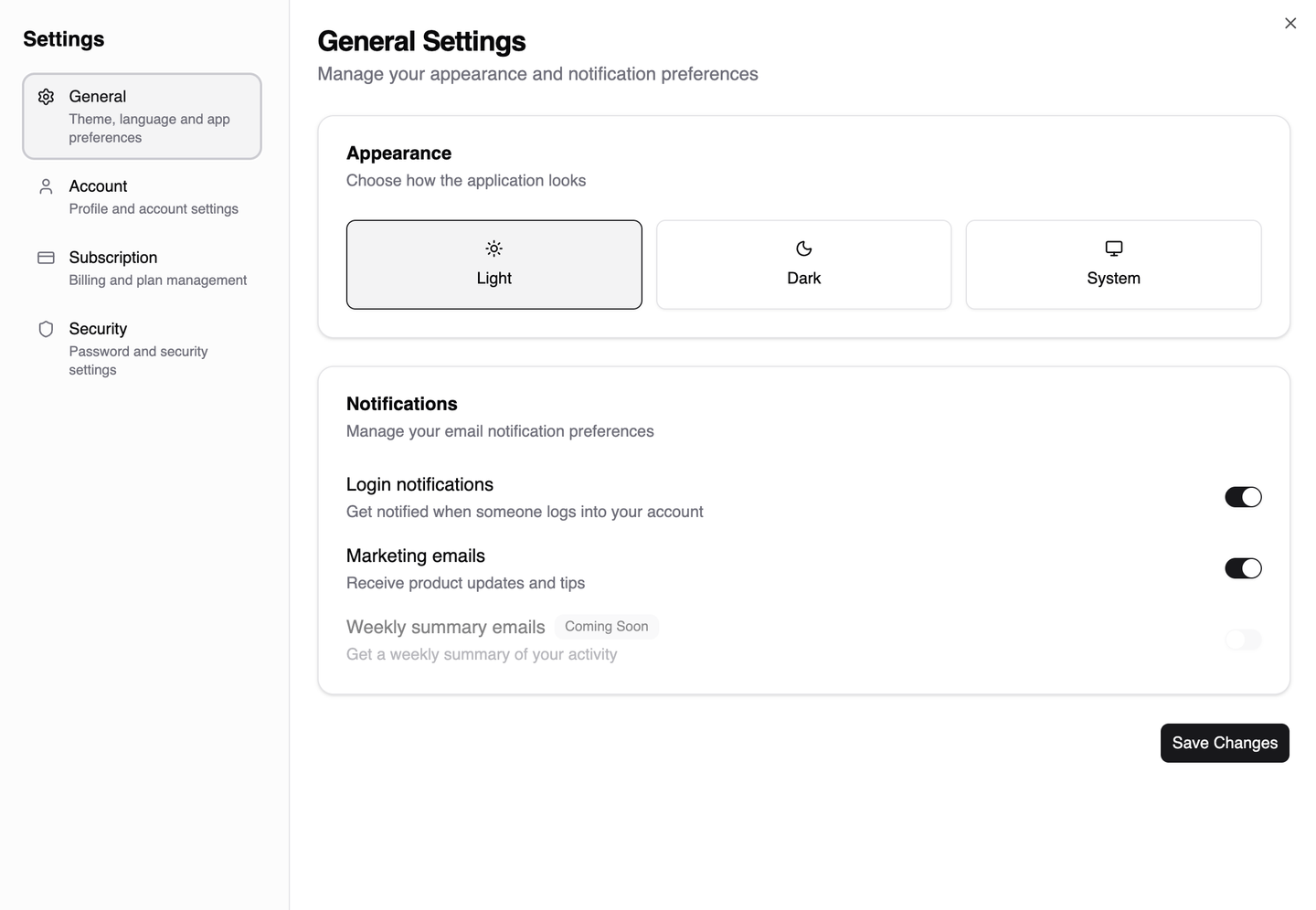
- Theme — Light, Dark, or System (follows your OS preference)
This setting controls the AriseNote dashboard UI appearance only. Widget embeds in Notion use their own dark mode setting, which you can configure in the widget editor.
Account Settings
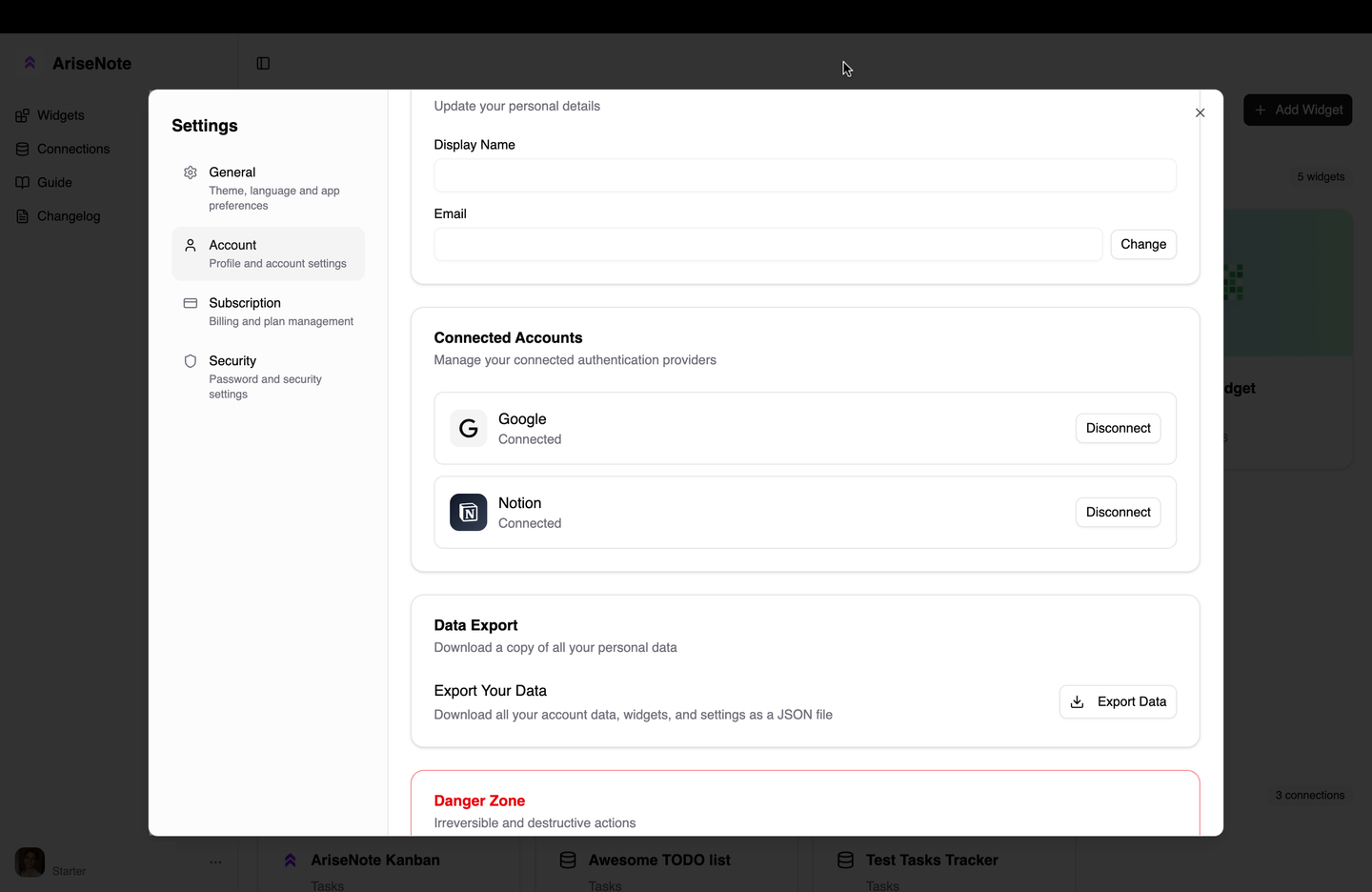
Settings → Account
Profile
- Display name — shown in widgets that display user info by default (Levels, Heatmap)
- Avatar — profile picture URL, used as default avatar in widgets
Connected Accounts
Link external accounts for login and integrations:
| Account | Purpose |
|---|---|
| Sign-in provider (OAuth button or optional One Tap prompt) | |
| Notion | Sign-in provider + database access for widgets |
Connect or disconnect each account independently. Disconnecting Notion stops data sync for all Notion-backed widgets but does not delete your widgets.
See Connecting Notion for the OAuth setup process.
- View your current email address
- Change email (requires verification of the new address)
Security Settings
Settings → Security
Password
If you signed up with email:
- Change password — requires your current password
- Set password — available if you originally signed up via Google and want to add email login
If you only use Google OAuth, password management is not required.
Exporting Data
Click Export data to download a JSON file containing all your data. This includes your widgets, connections, and other settings.
Two-Factor Authentication (2FA)
AriseNote supports TOTP-based two-factor authentication (compatible with Google Authenticator, Authy, 1Password, etc.).
Enabling 2FA:
- Go to Settings → Security.
- Click Enable 2FA.
- Scan the QR code with your authenticator app.
- Enter the 6-digit code to confirm.
- Download your backup codes — store them securely. Each code works once if you lose access to your authenticator.
Disabling 2FA:
- Go to Settings → Security.
- Click Disable 2FA.
- Enter a current TOTP code or a backup code to confirm.
Trusted Devices
Devices you've marked as trusted may skip 2FA prompts on subsequent logins. Review and remove trusted devices you no longer use.
Password Reset
If you forget your password:
- Go to the login page and click Forgot password.
- Enter your email address.
- Check your inbox for a reset link.
- Set a new password via the link.