Connections
A connection links a Notion database to one or more AriseNote widgets. Each connection has a type — that defines which database fields AriseNote expects and how your data is interpreted.
Connection Types
AriseNote supports two connection types:
Tasks
For to-do lists, project trackers, and any database where you mark items as complete.
Required fields:
| AriseNote field | Notion type | Description |
|---|---|---|
| Title | Title | The task name |
| Status | Status, Select, or Checkbox | Current task state |
Optional fields:
| AriseNote field | Notion type | Description |
|---|---|---|
| Due Date | Date | Task deadline |
| Complexity | Select or Status | Effort level for XP calculation |
| Assignee | People | Filter tasks by person |
| Completion Date | Date | When the task was marked done |
Example database schemas:
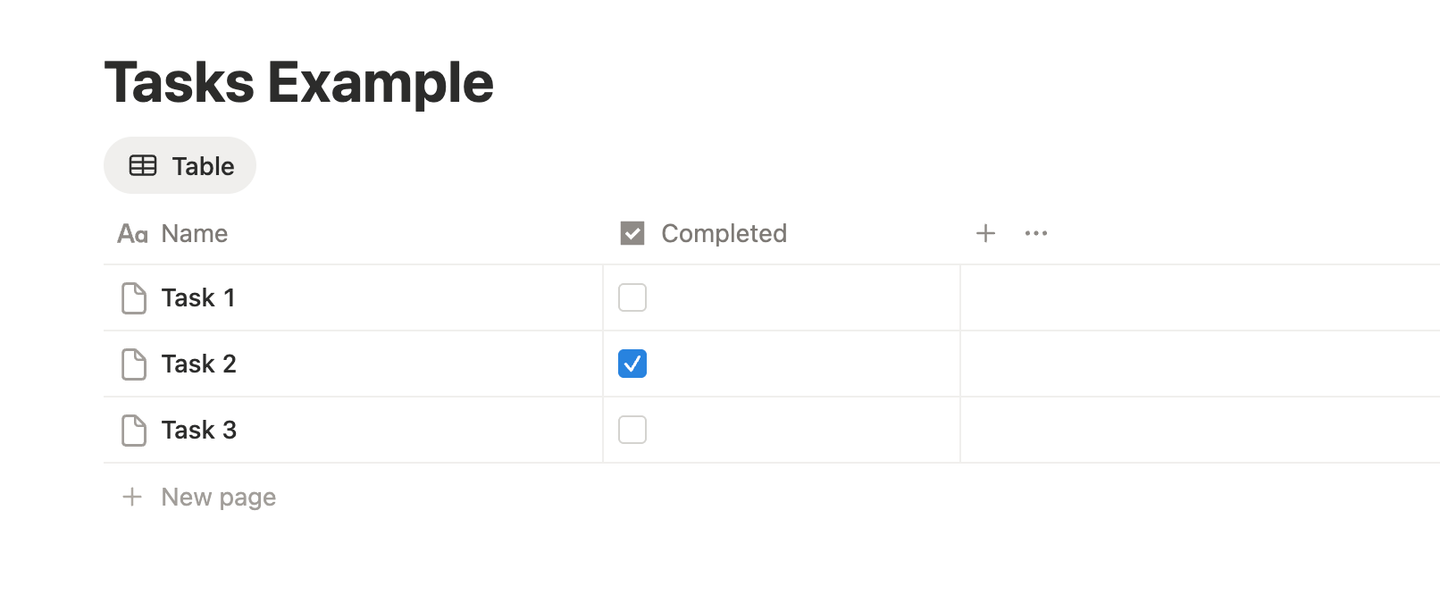
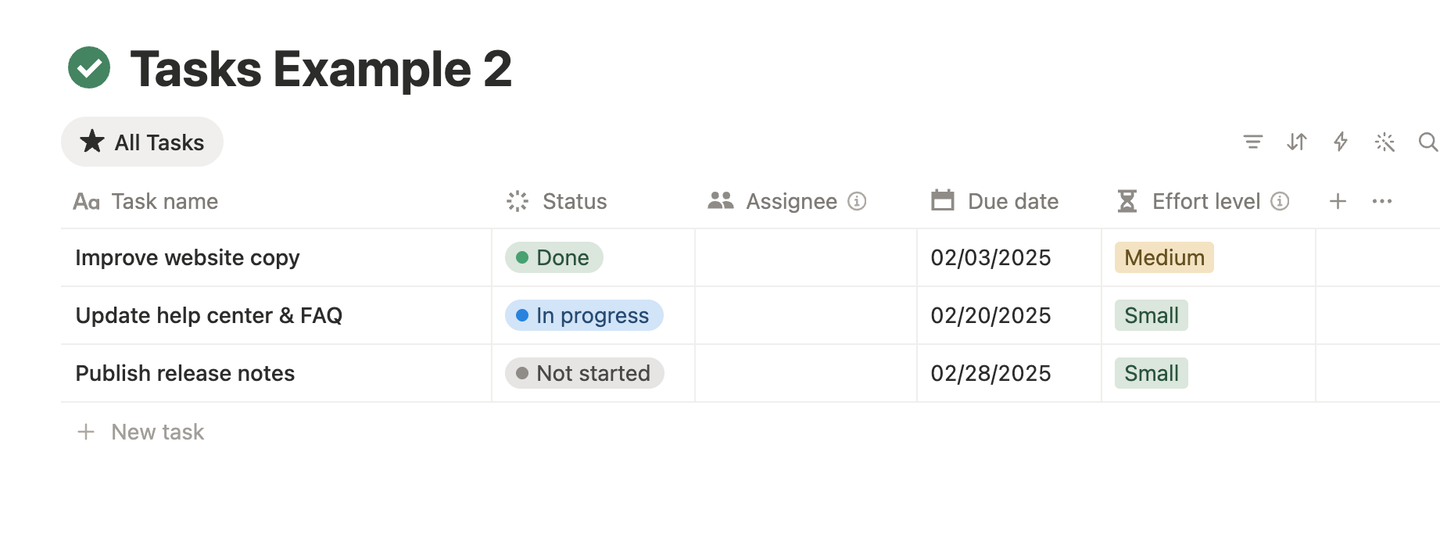
Habits
For habit completion logs — one row per completion event.
Required fields:
| AriseNote field | Notion property type | Description |
|---|---|---|
| Completion Date | Date | When the habit was completed |
Optional fields:
| AriseNote field | Notion property type | Description |
|---|---|---|
| Habit | Relation | Link to a habits list database |
Creating a Connection
Connections are created during widget setup or managed from the dashboard.
During widget creation
- Choose a Notion-backed widget (Streak, Levels, or Heatmap).
- On the Notion Setup step, select a connection type (Tasks or Habits).
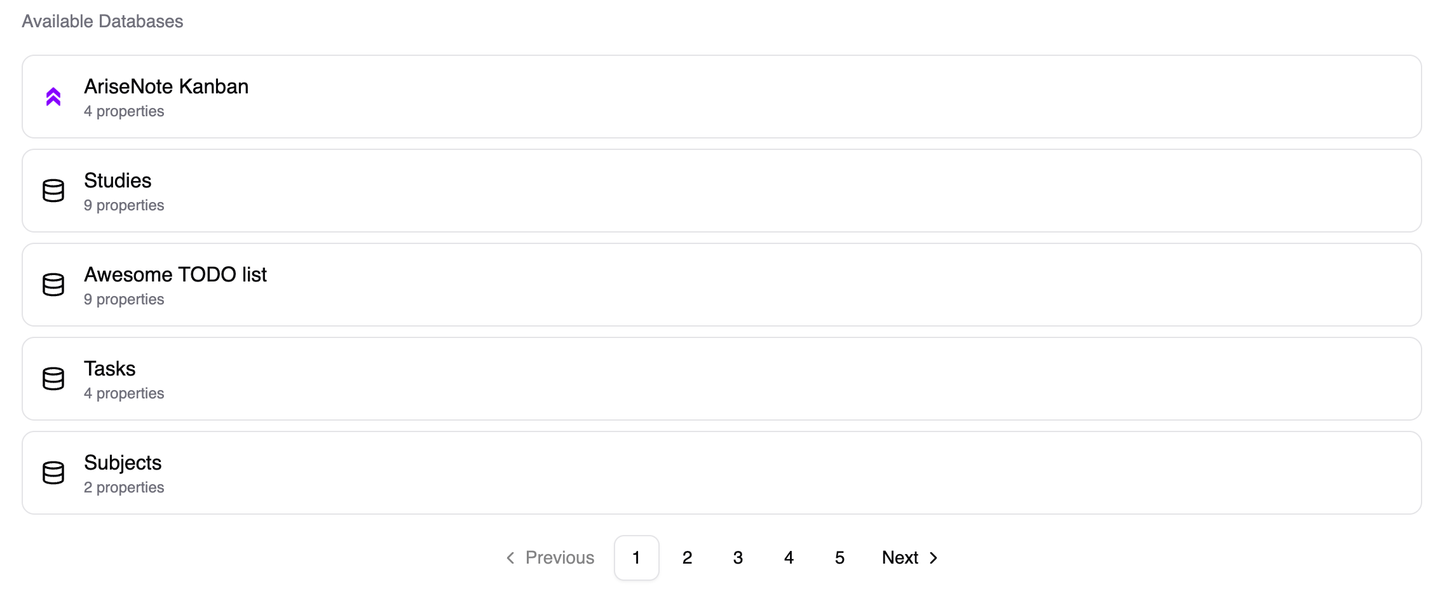
- Pick an existing database from the list, or choose Use our database to copy a ready-made template.
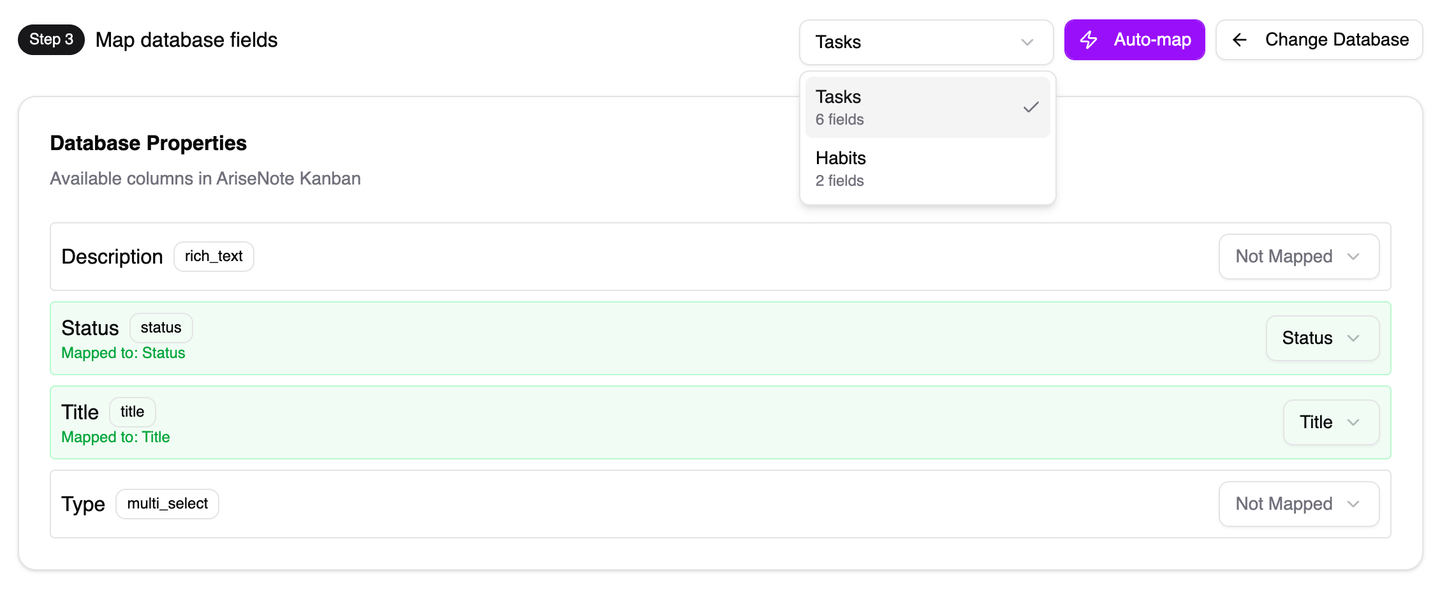
- Map your database fields (see Field Mapping below).
- Configure connection settings (status mapping, XP — see Connection Configuration).
- Complete widget creation.
Using a template database
If you don't have a suitable database yet, select Use our database during setup. AriseNote provides pre-configured templates for Tasks and Habits that work out of the box with minimal mapping.
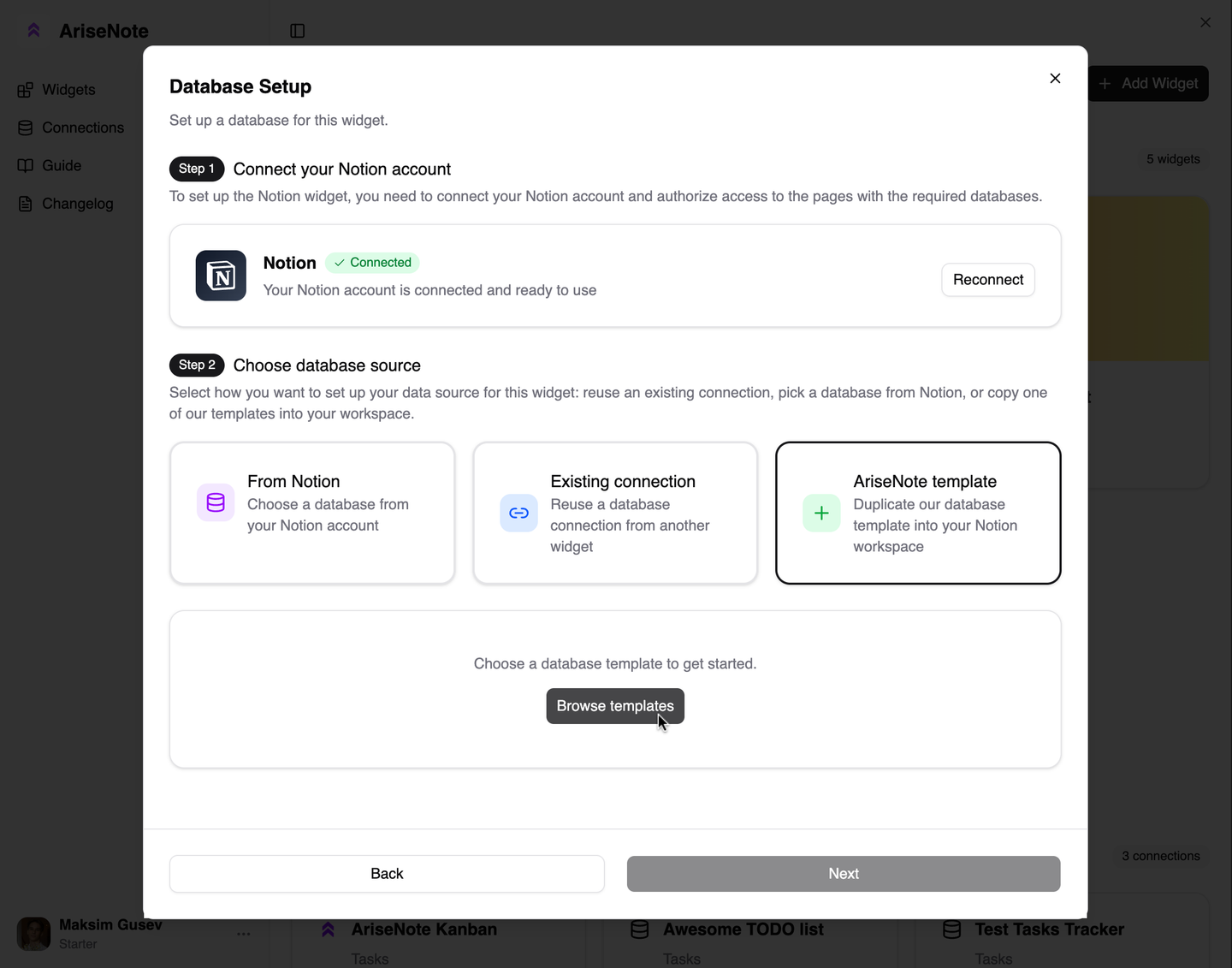
This will open up the template library dialog, where you can browse, select and duplicate a template database to your Notion account.
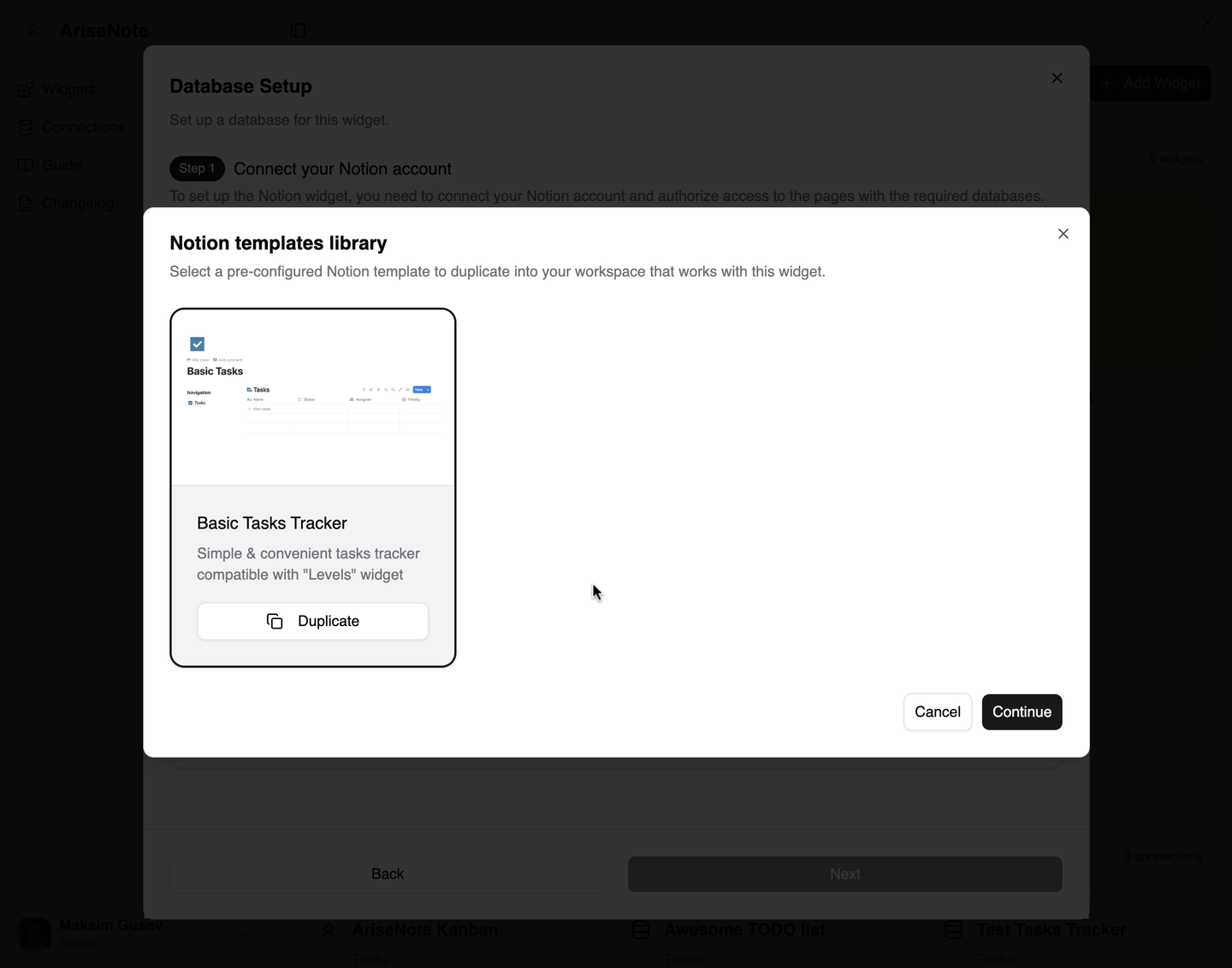
Don't forget to add "AriseNote" integration to the template database after duplicating it, so that it would appear in the available databases list, or reconnect your Notion account.
Field Mapping
Field mapping tells AriseNote which Notion property corresponds to each required data field. Most mappings are detected automatically based on property names and types.
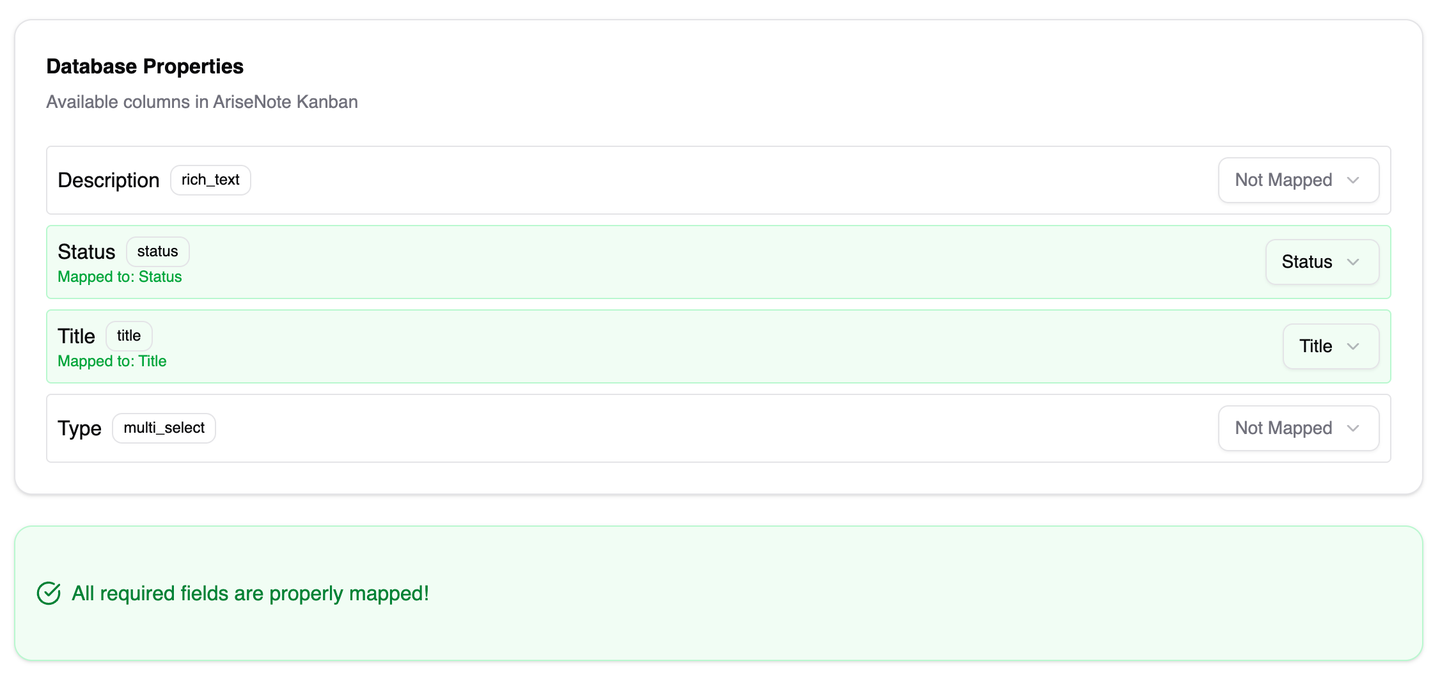
Auto-mapping
When you select a database, AriseNote scans property names and types and suggests mappings. If your properties use standard names like "Status", "Due Date", or "Completed On", mapping usually completes without manual changes.
Manual mapping
If auto-mapping misses a field or maps incorrectly:
- Open the field mapping interface during widget setup, or edit the connection later from the dashboard.
- For each AriseNote field, select the matching Notion property from the dropdown.
- Required fields must be mapped before you can proceed.
Connection Configuration
After field mapping, configure how AriseNote interprets your data. Settings differ by connection type.
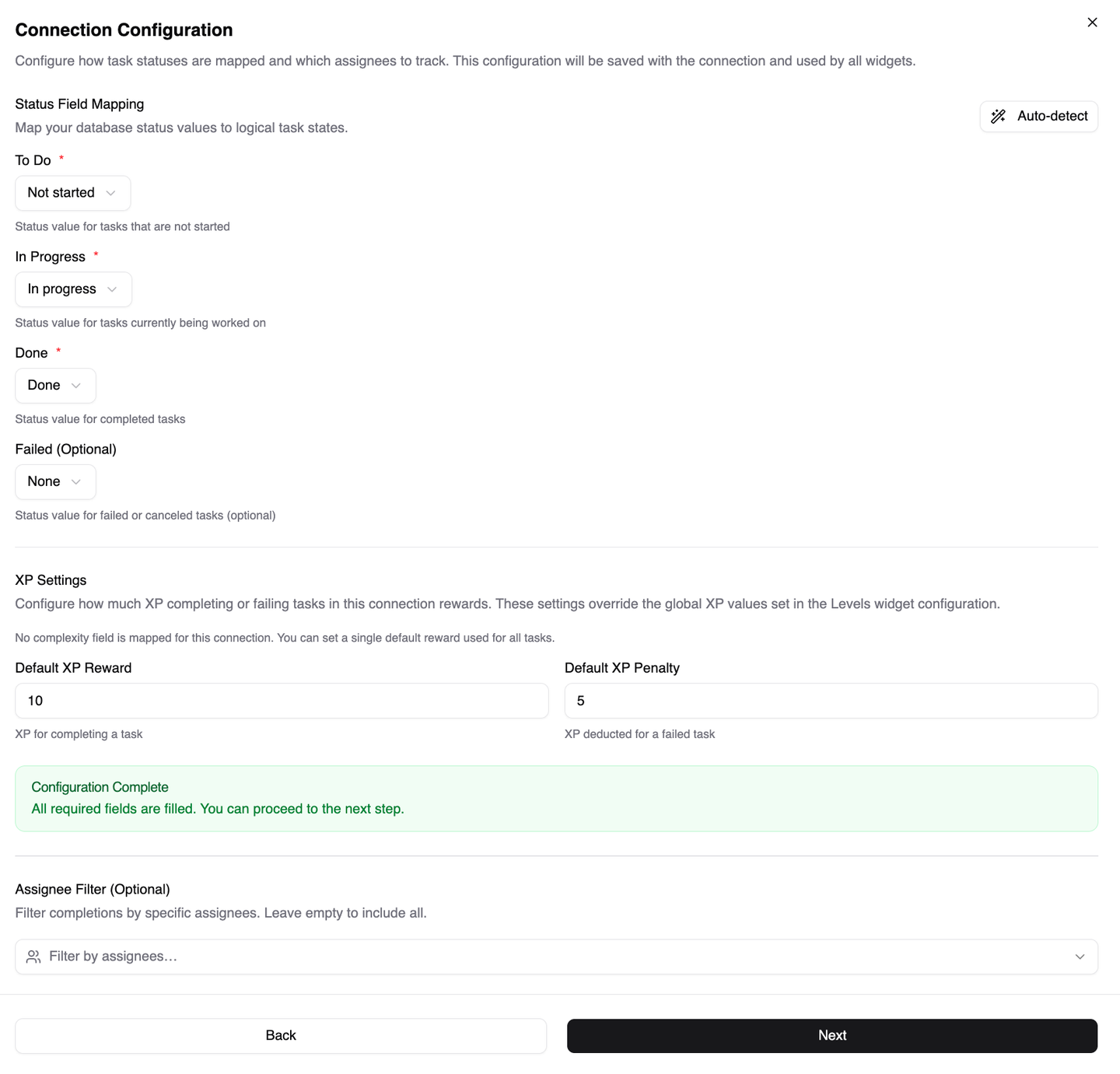
Tasks: Status Mapping
Map your Notion status values to AriseNote's status states:
| State | Description |
|---|---|
| To Do | Not yet started |
| In Progress | Currently being worked on |
| Done | Completed successfully |
| Failed | Cancelled or failed (optional) |
If your status field is a Checkbox, no custom mapping is needed — checked means done.
Use the Auto-detect button to fill mappings from your database's status options automatically.
Tasks: Assignee Filter
Limit which tasks count toward your widget by assignee. Leave empty to include all tasks, or select specific people to track only their progress.
Tasks: XP Settings (Complexity)
If you mapped a Complexity field, configure XP rewards and penalties per effort level:
- XP Reward — points earned when a task with this complexity is completed
- XP Penalty — points lost when a task with this complexity fails
Set one effort level as the default for tasks without a complexity value.
Habits: XP Reward
For habit connections, set a flat XP Reward value awarded each time a habit completion is recorded.
Managing Connections
From widget customization page
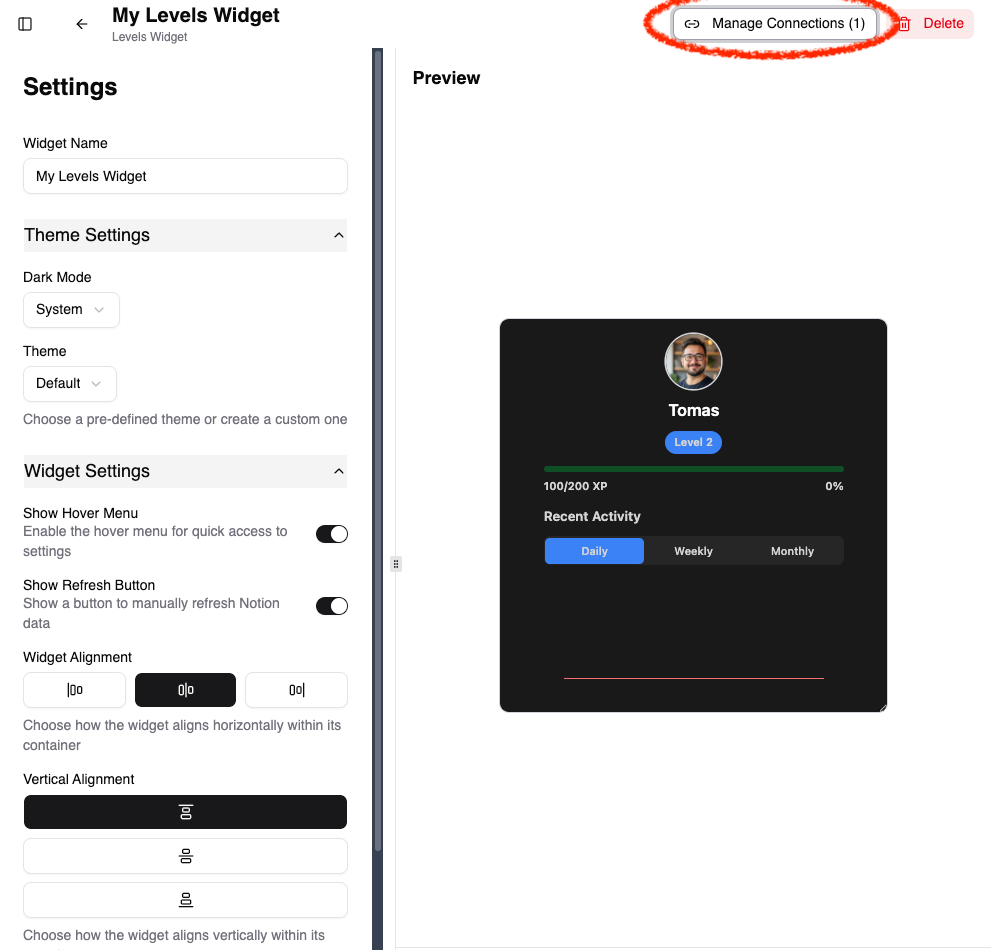
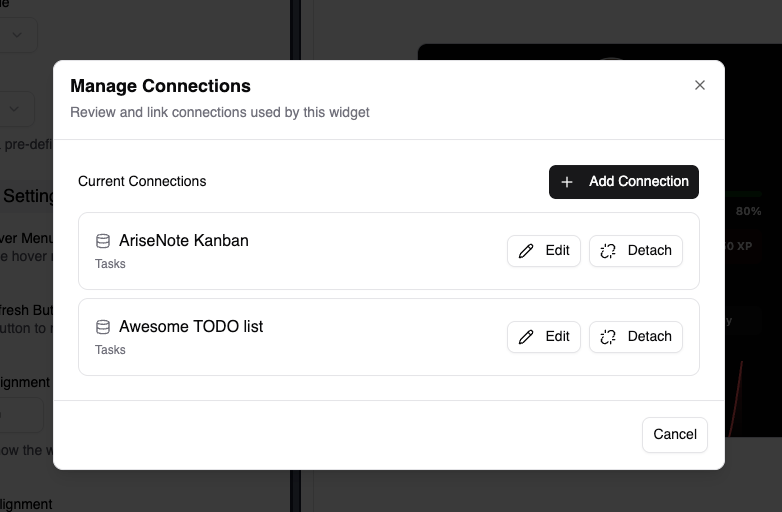
You can manage connections from the widget customization page. Click the "Manage Connections" button to open the connection management page.
From the dashboard
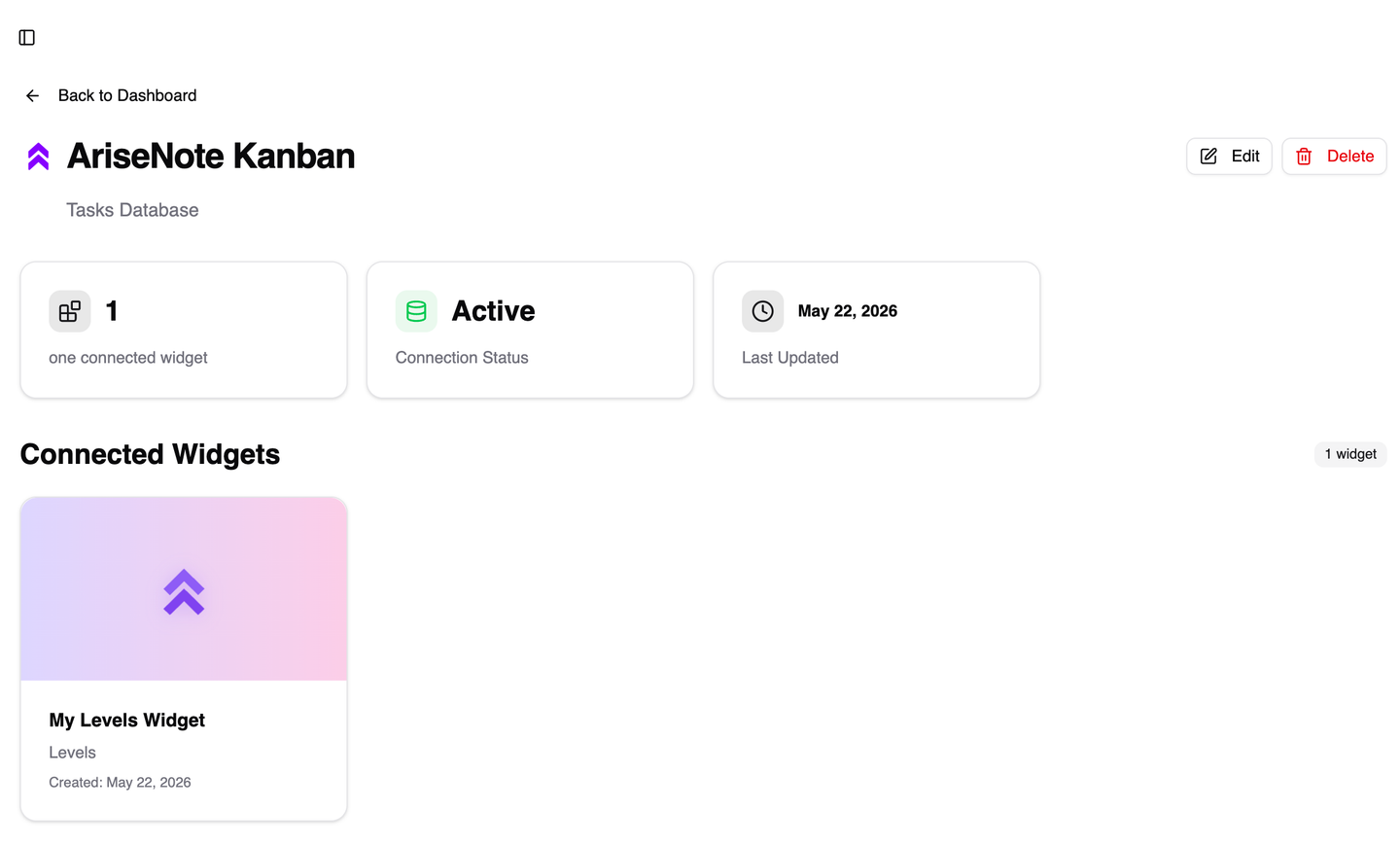
Each connection appears on the dashboard with its linked database name and type. Click a connection to open its detail page, where you can:
- View which widgets use this connection
- Edit field mappings and configuration
- Delete the connection (widgets using it will lose their data source)
Sharing connections across widgets
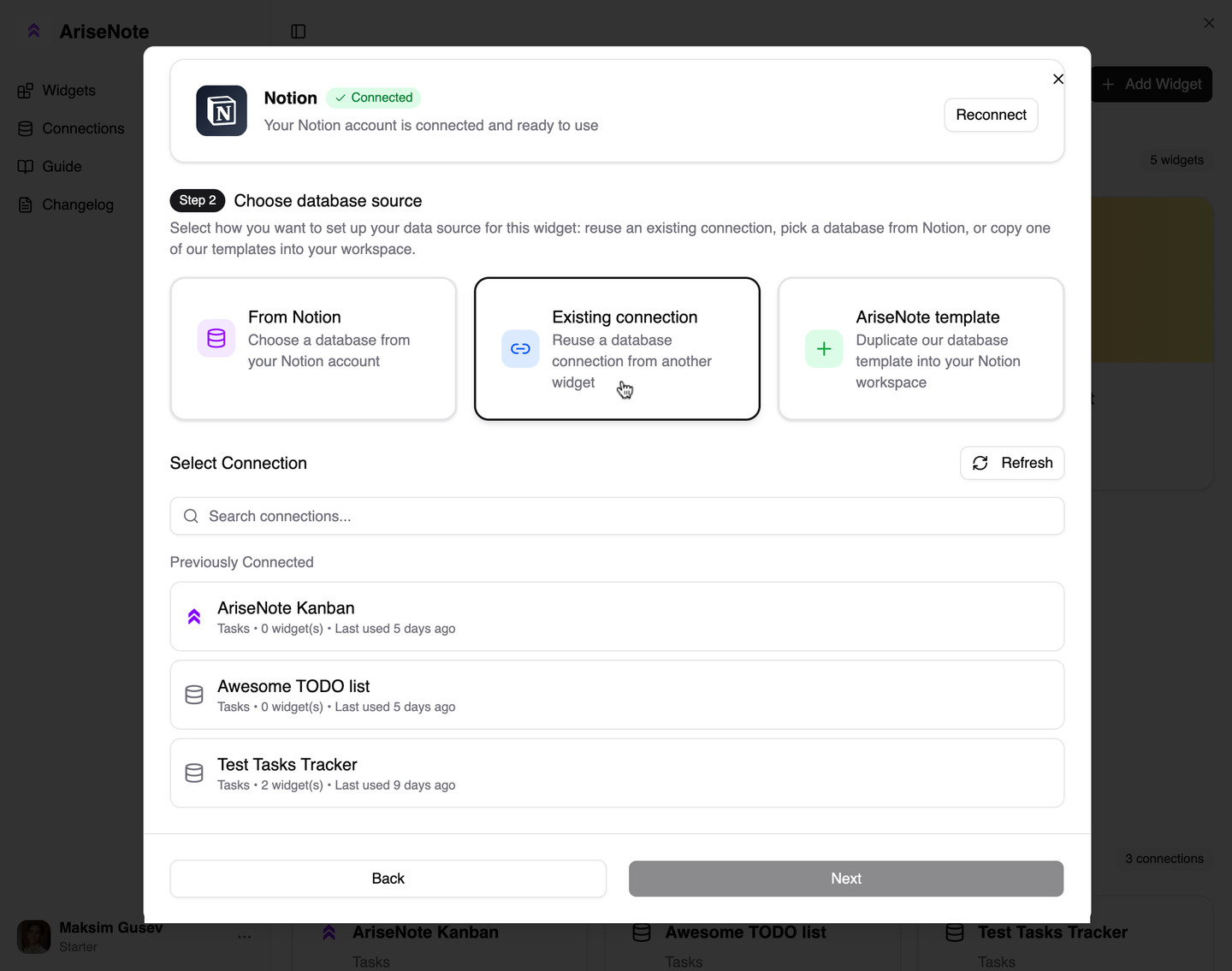
A single connection can power multiple widgets. When creating a new widget, it's also possible to choose an existing connection instead of linking a new database. You can also attach or detach connections from a widget in the widget editor.
Troubleshooting
Database not in the list
- Ensure the database page is shared with AriseNote in Notion (see Connecting Notion).
- Refresh the dashboard page.
Field mapping validation errors
- Missing field — map all required fields before proceeding.
- Type mismatch — the Notion property type doesn't match what the field expects.
Widget shows no data
- Confirm the database has entries within the widget's date range.
- Check status mapping values match your Notion status options exactly.
- For relation fields, ensure the related database is also shared with AriseNote.
- Review assignee filter settings — your tasks may be filtered out.
Data looks wrong after schema changes
If you rename or restructure Notion properties, open the connection editor and update field mappings to match.
Next Steps
- Widget Configuration — themes, fonts, and display settings
- Creating Widgets — full widget setup walkthrough