Creating Widgets
Now that you've connected your Notion workspace and databases, it's time to create your first widget! This guide will walk you through the widget creation process.
Widget Types Overview
Notionarise offers several widget types, each designed for different use cases:
Heatmap Widget
The Heatmap Widget displays your activity in a GitHub-style calendar grid. Perfect for:
- Visualizing habit consistency
- Tracking daily task completion
- Monitoring workout frequency
- Analyzing productivity patterns
Features:
- Color-coded intensity levels
- Customizable color schemes
- Multiple data sources
- Hover tooltips with details
Levels Widget
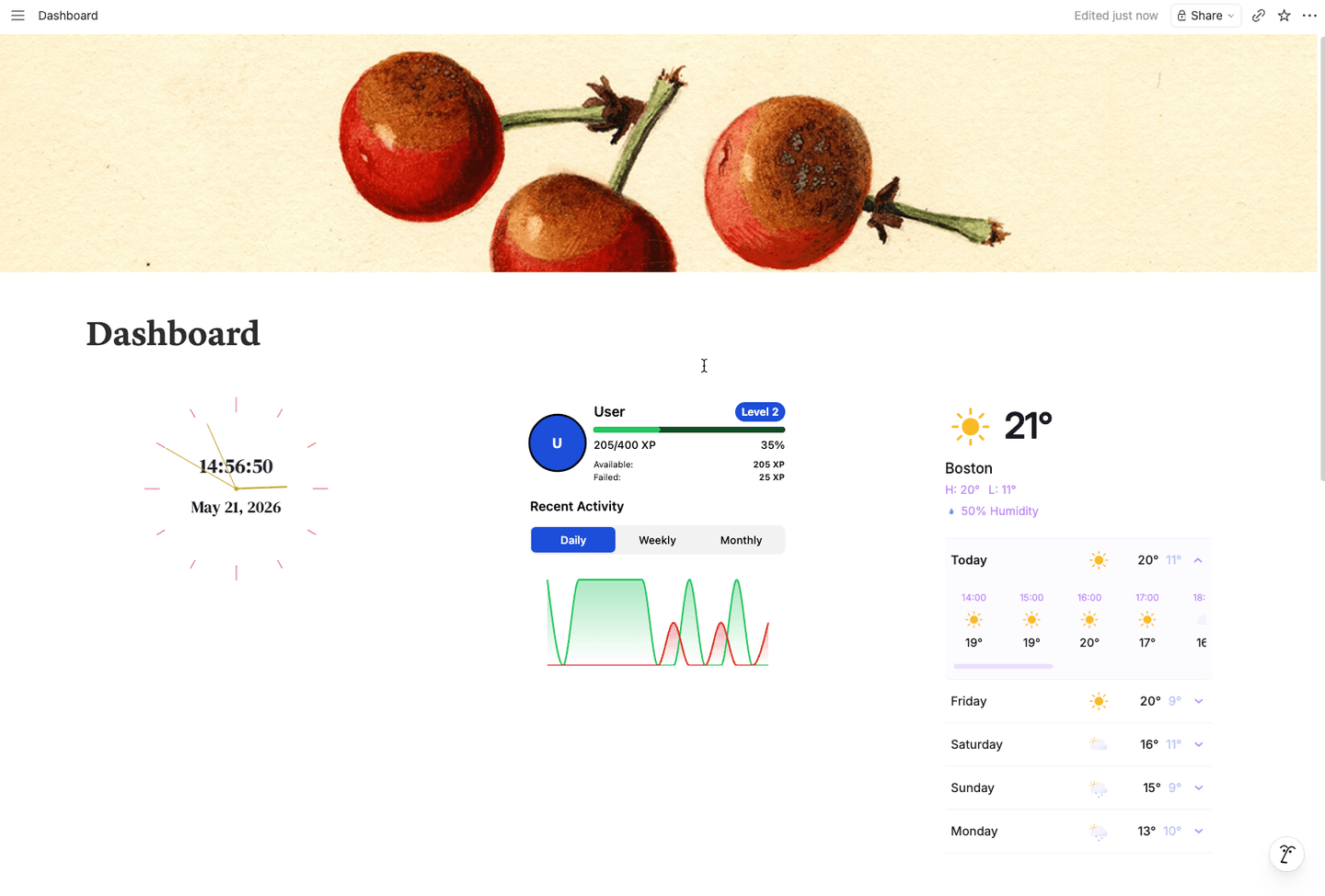
The Levels Widget gamifies your progress with an RPG-style leveling system:
- Earn XP for completing tasks
- Level up as you achieve more
- Visual progress bars
- Customizable XP calculations
Perfect for:
- Motivating long-term goals
- Tracking skill development
- Gamifying daily routines
- Building positive habits
Progress Bar Widget
Simple yet effective Progress Bars show completion percentage:
- Goal tracking
- Project milestones
- Habit streaks
- Target achievement
Streak Counter
Track consecutive days of achievement:
- Current streak display
- Best streak record
- Streak history
- Motivational messages
Statistics Dashboard
Comprehensive overview of your data:
- Total completions
- Average performance
- Trends and patterns
- Custom metrics
Creating Your First Widget
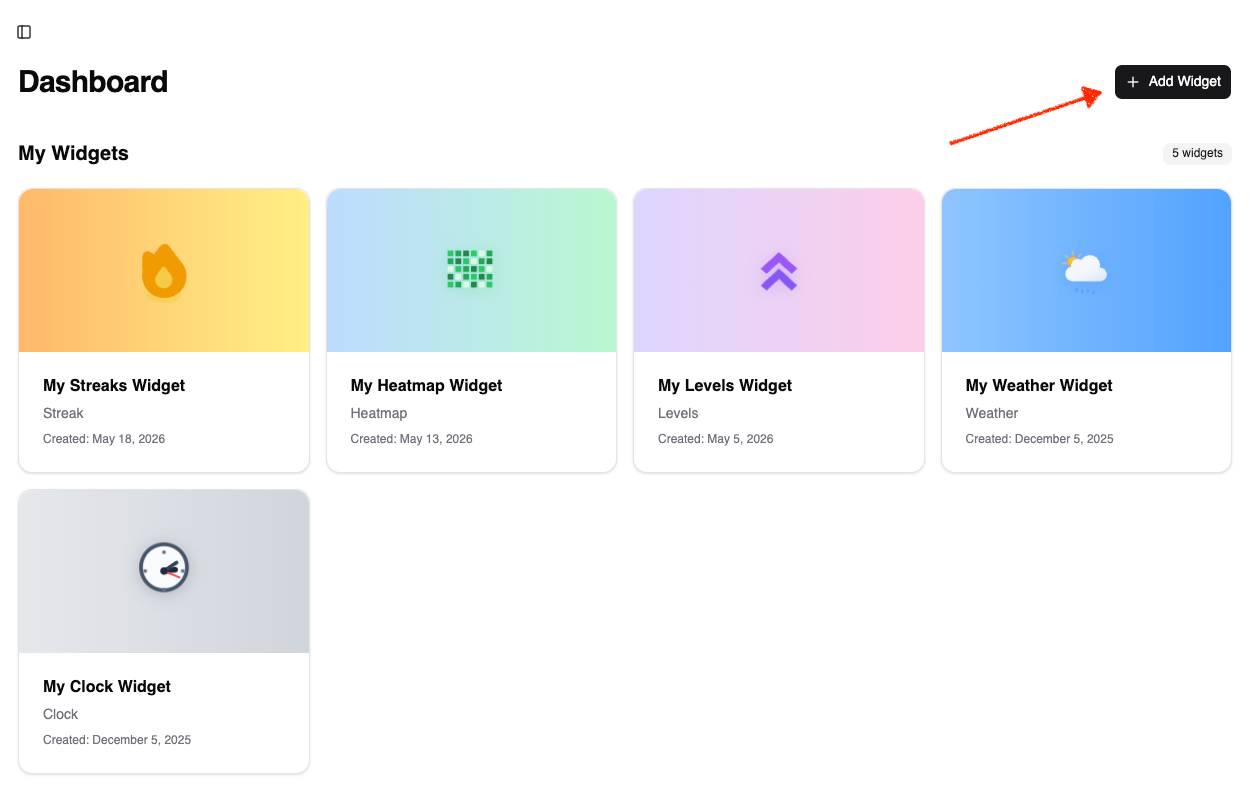
Step 1: Navigate to Widgets
- Log in to your Notionarise dashboard
- Click Widgets in the sidebar
- Click the Create Widget button
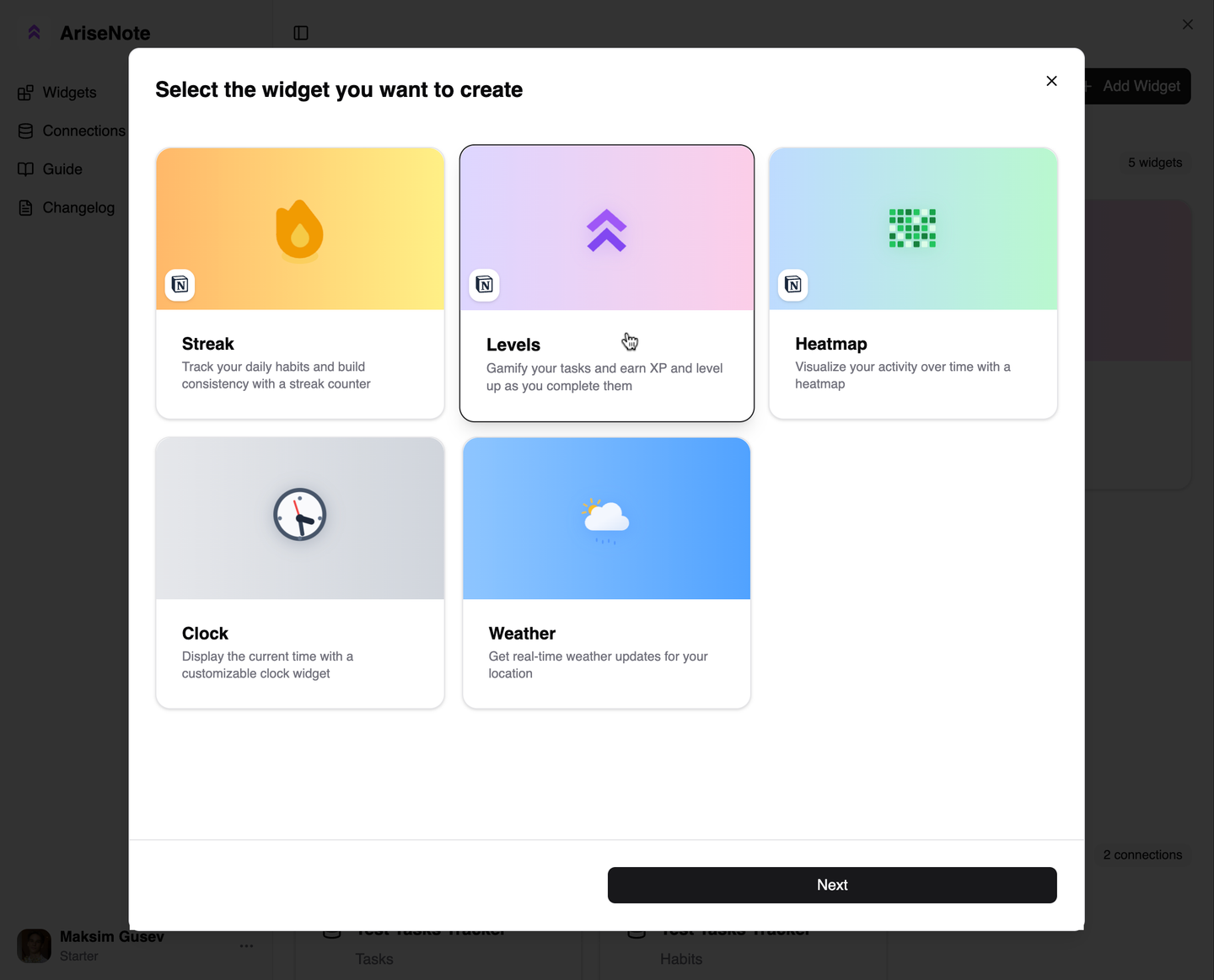
Step 2: Choose Widget Type
Select the widget type that best fits your needs:
- For habit tracking ā Heatmap
- For gamification ā Levels
- For goal tracking ā Progress Bar
- For consistency ā Streak Counter
- For overview ā Statistics Dashboard
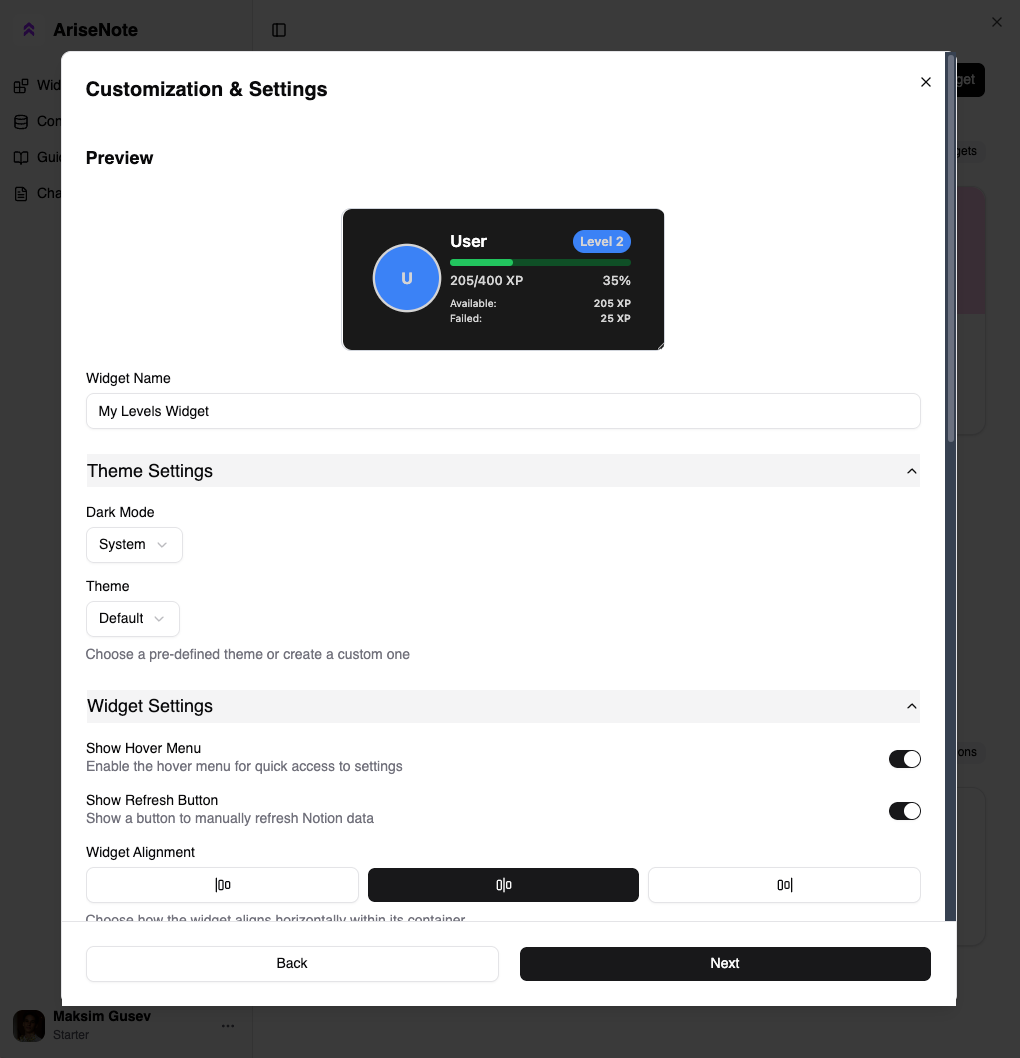
Step 3: Configure Basic Settings
Give your widget a name and description:
Widget Name: My Habits Heatmap
Description: Track my daily habits completion
Best Practices:
- Use descriptive names
- Add notes about the widget's purpose
- Tag widgets for easy organization
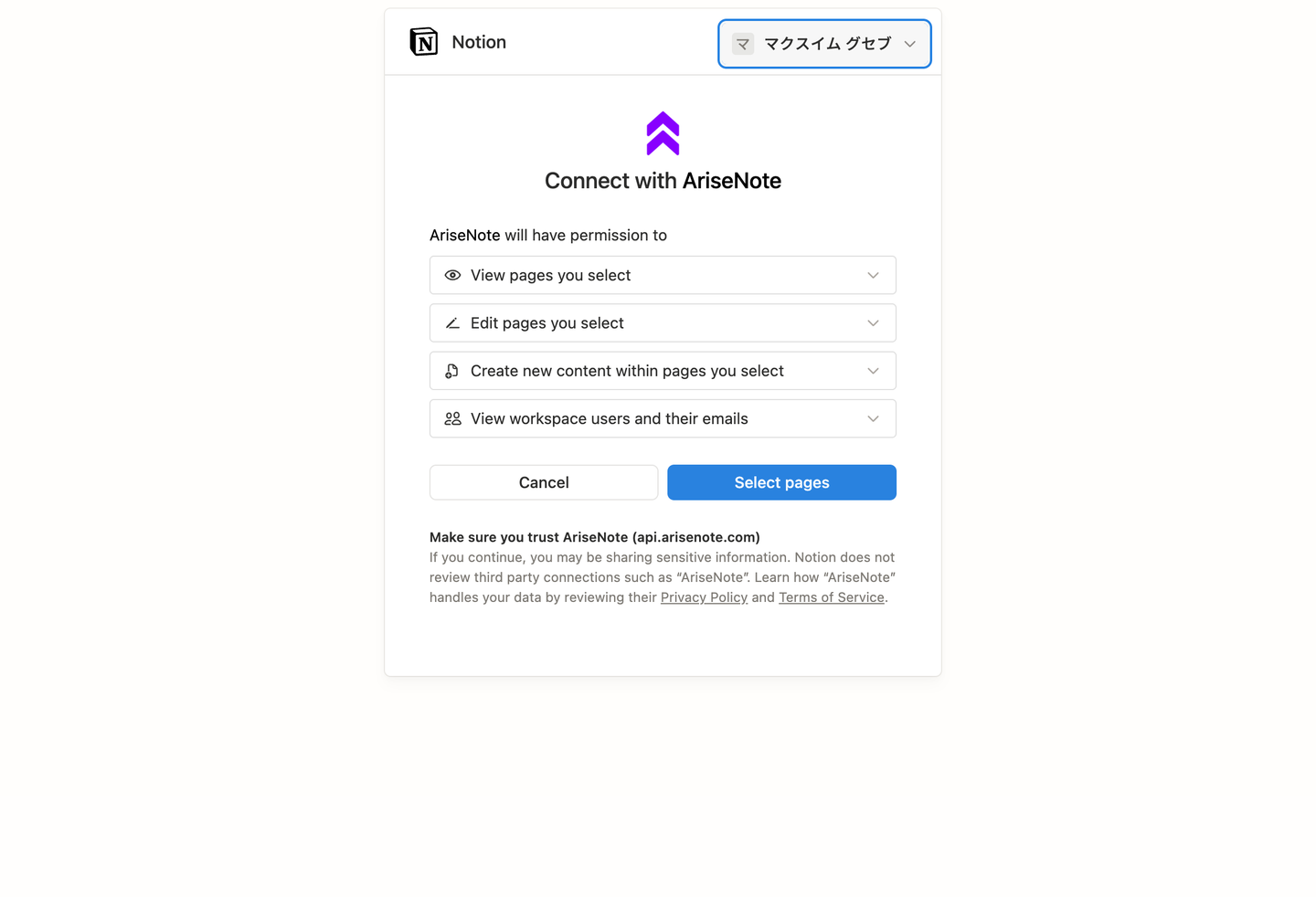
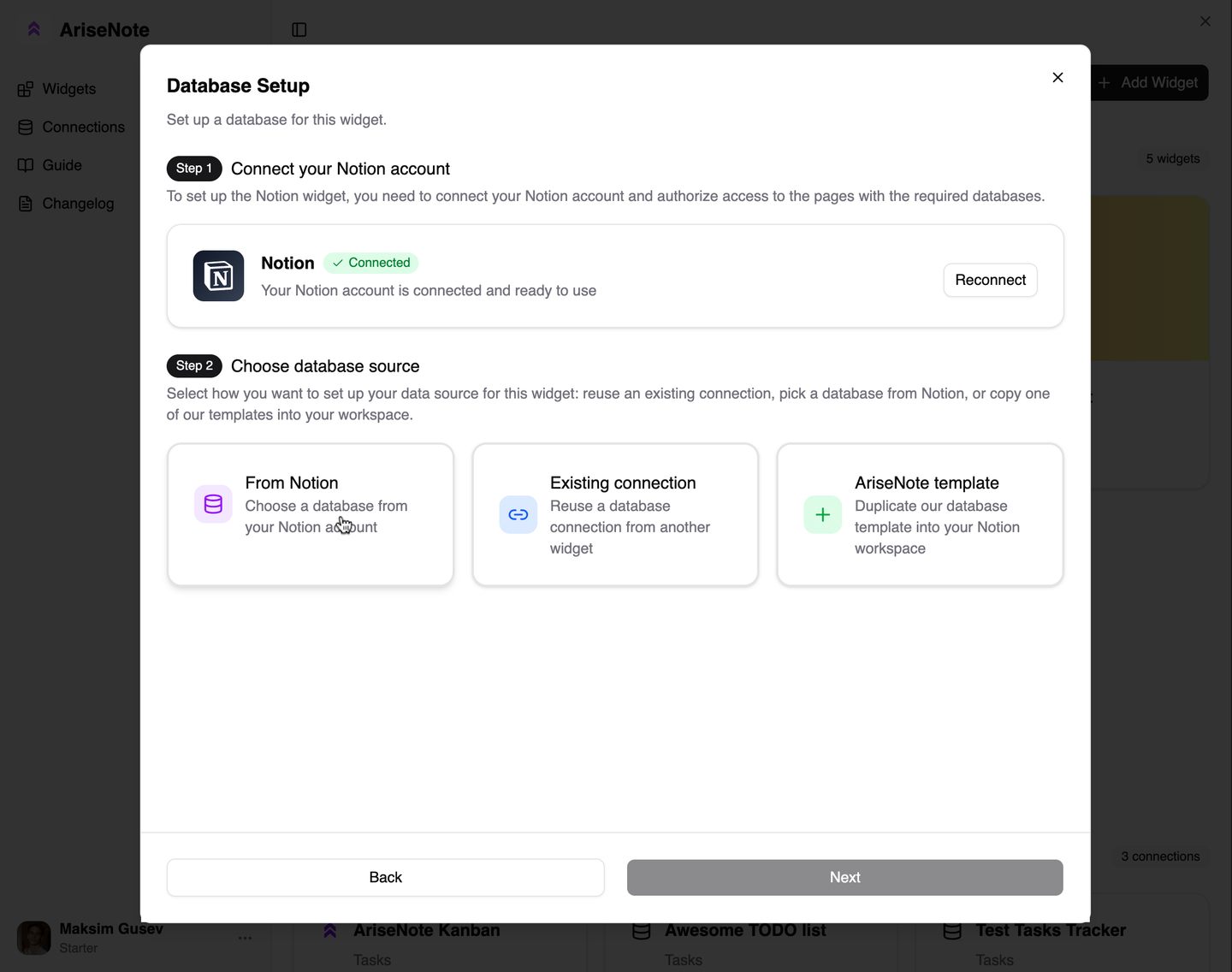
Step 4: Add Connections
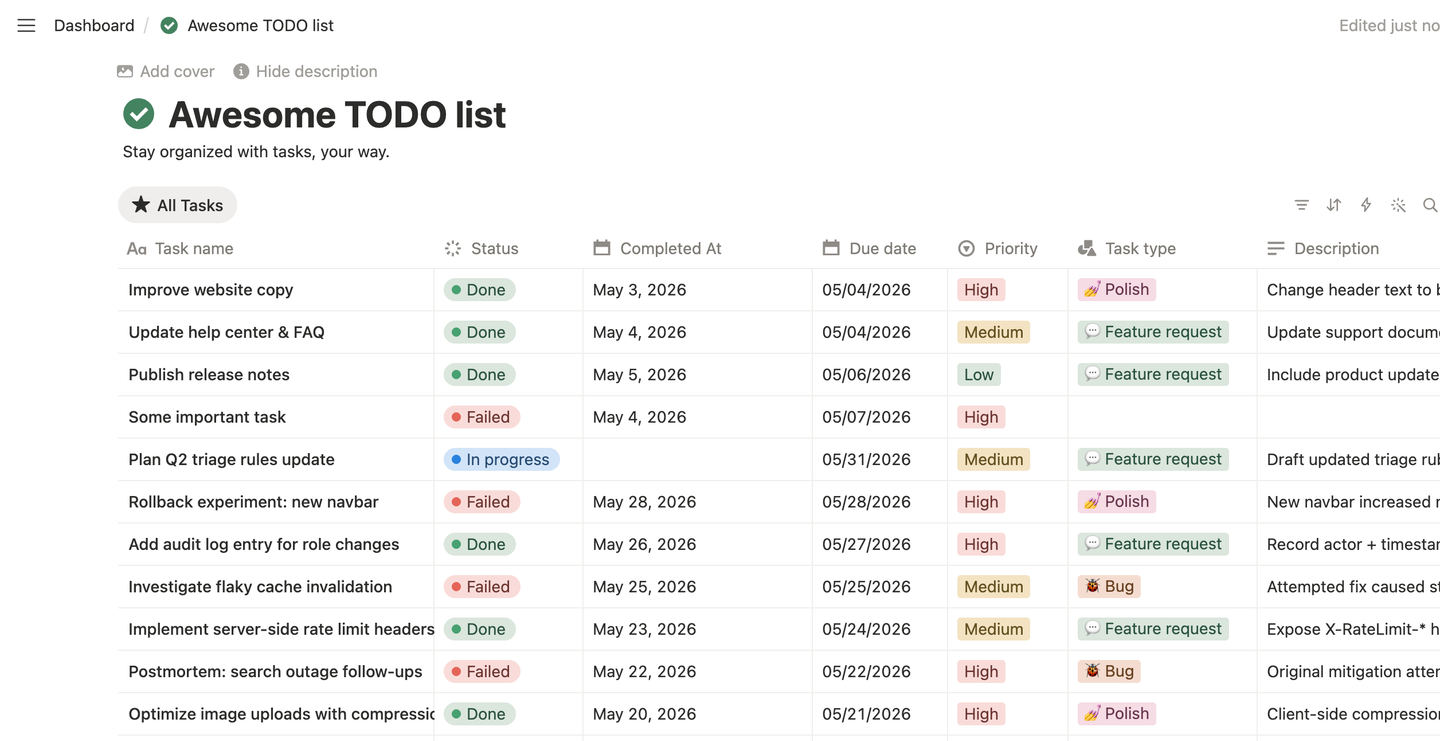
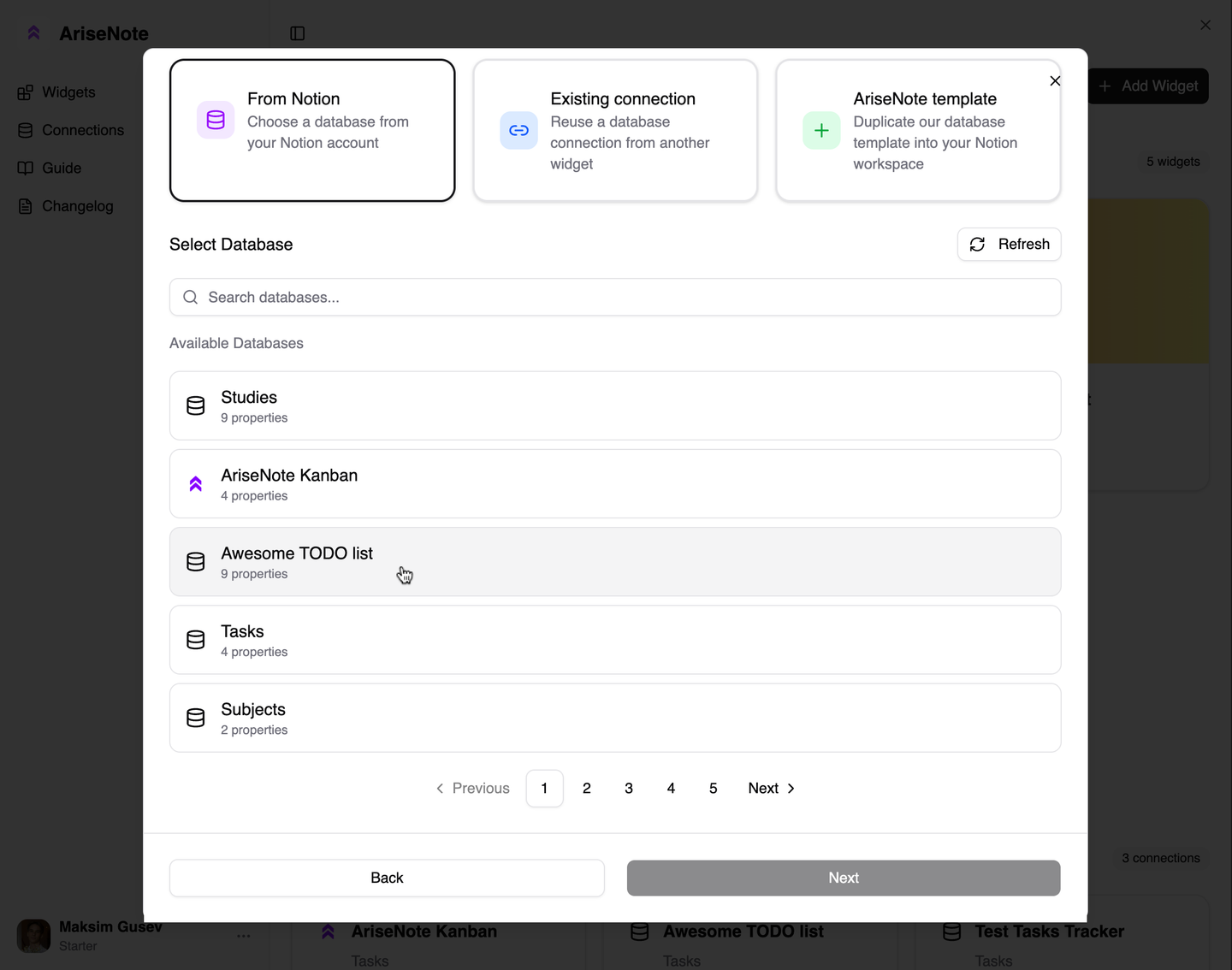
Connect your widget to Notion databases:
- Click Add Connection
- Select connection type (e.g., "Habits")
- Choose your Notion database
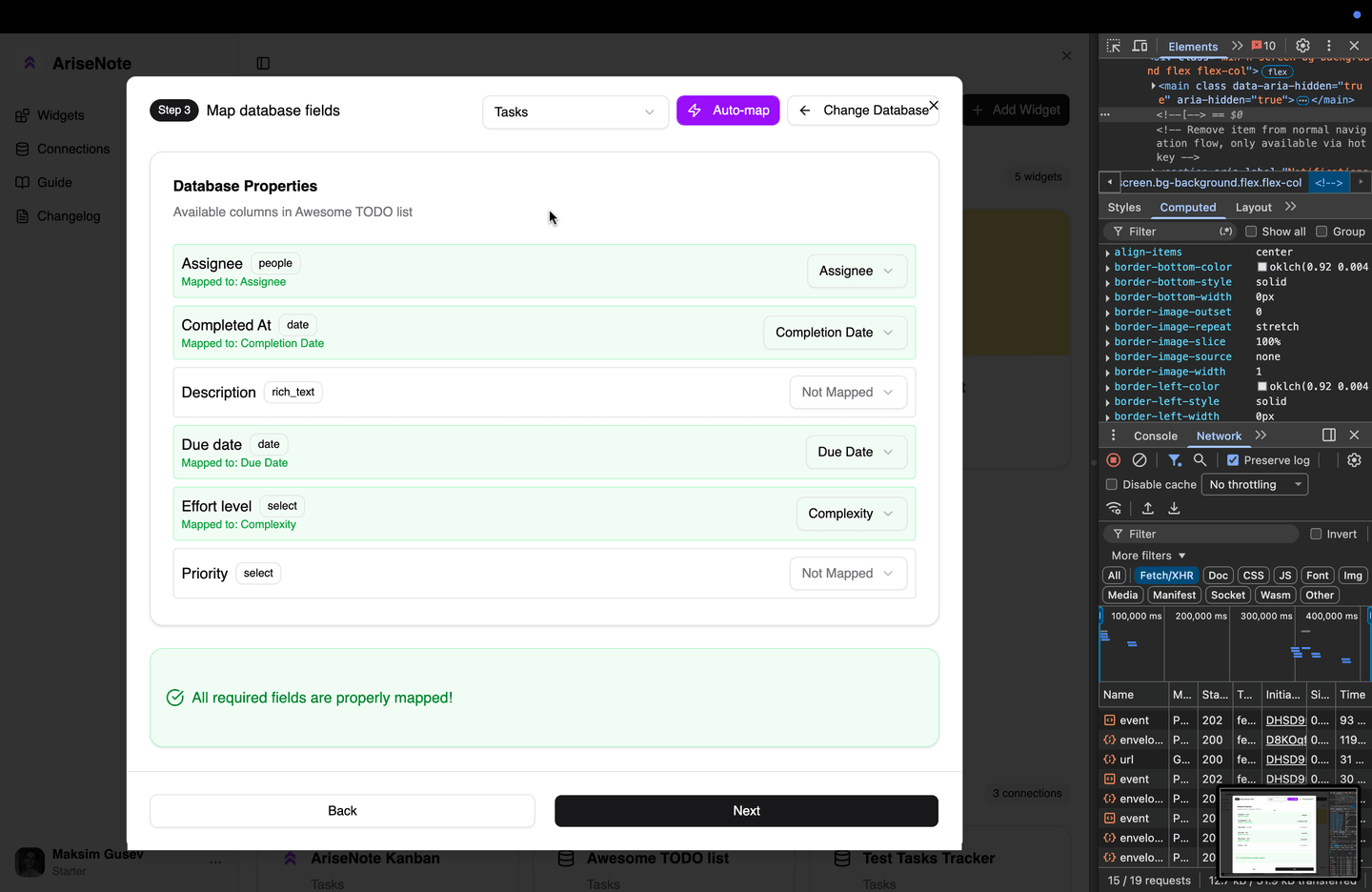
- Map database fields to widget fields
- Save the connection
Example Configuration:
Connection Type: Habits
Database: My Habit Tracker
Field Mappings:
- Habit ā "Habit" (Relation)
- Date ā "Date" (Date)
- Status ā "Completed" (Checkbox)
For detailed information on setting up connections, see Connecting Databases.
Step 5: Customize Appearance
Personalize your widget's look:
Color Schemes:
- Light mode colors
- Dark mode colors
- Custom color palettes
- Gradient options
Size & Layout:
- Widget dimensions
- Font sizes
- Spacing and padding
- Border styles
Display Options:
- Show/hide labels
- Date format
- Number formatting
- Animation effects
Step 6: Preview & Test
Before embedding:
- Click Preview to see your widget
- Test with sample data
- Verify all connections work
- Check appearance in both themes
- Test on different screen sizes
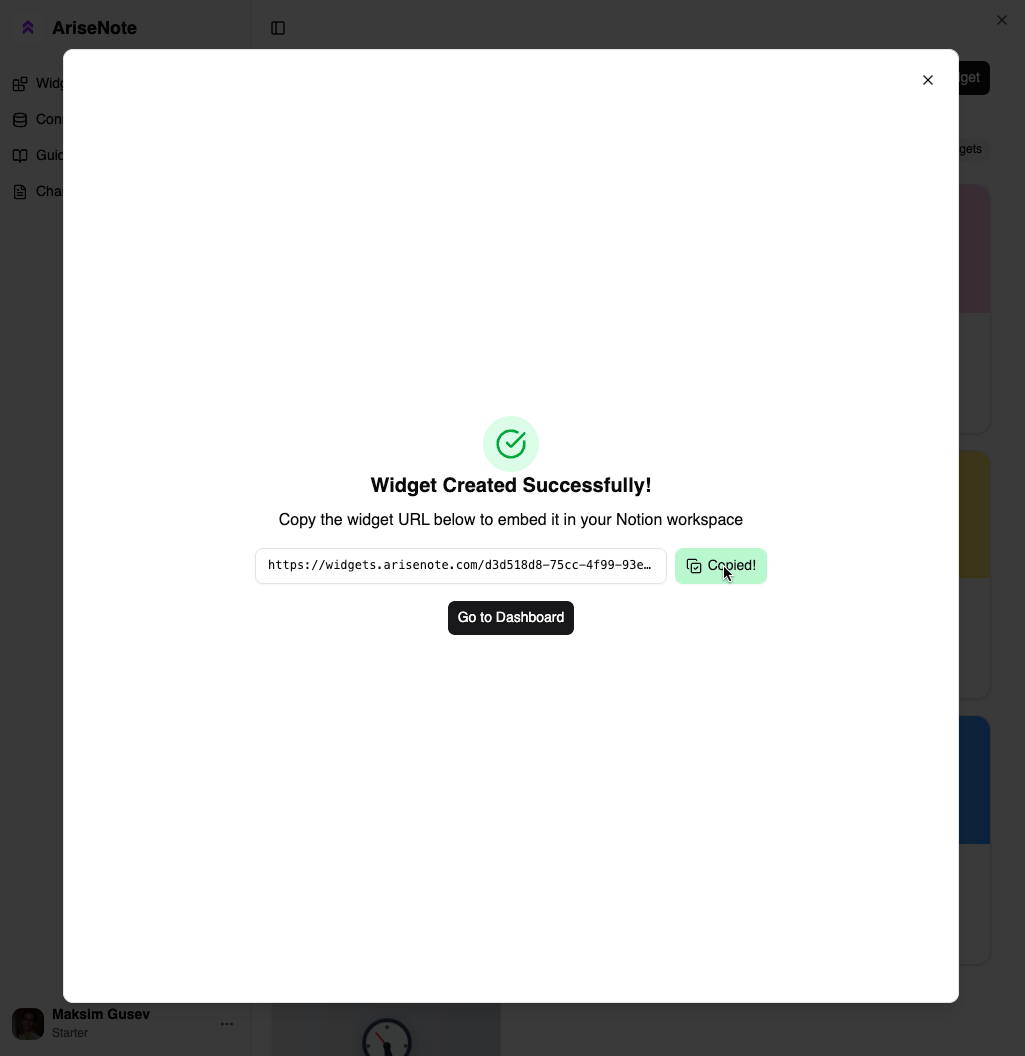
Step 7: Get Embed URL
Once satisfied with your widget:
- Click Publish
- Copy the widget embed URL
- The URL will look like:
https://widgets.notionarise.com/w/abc123
Embedding in Notion
Embedding Steps
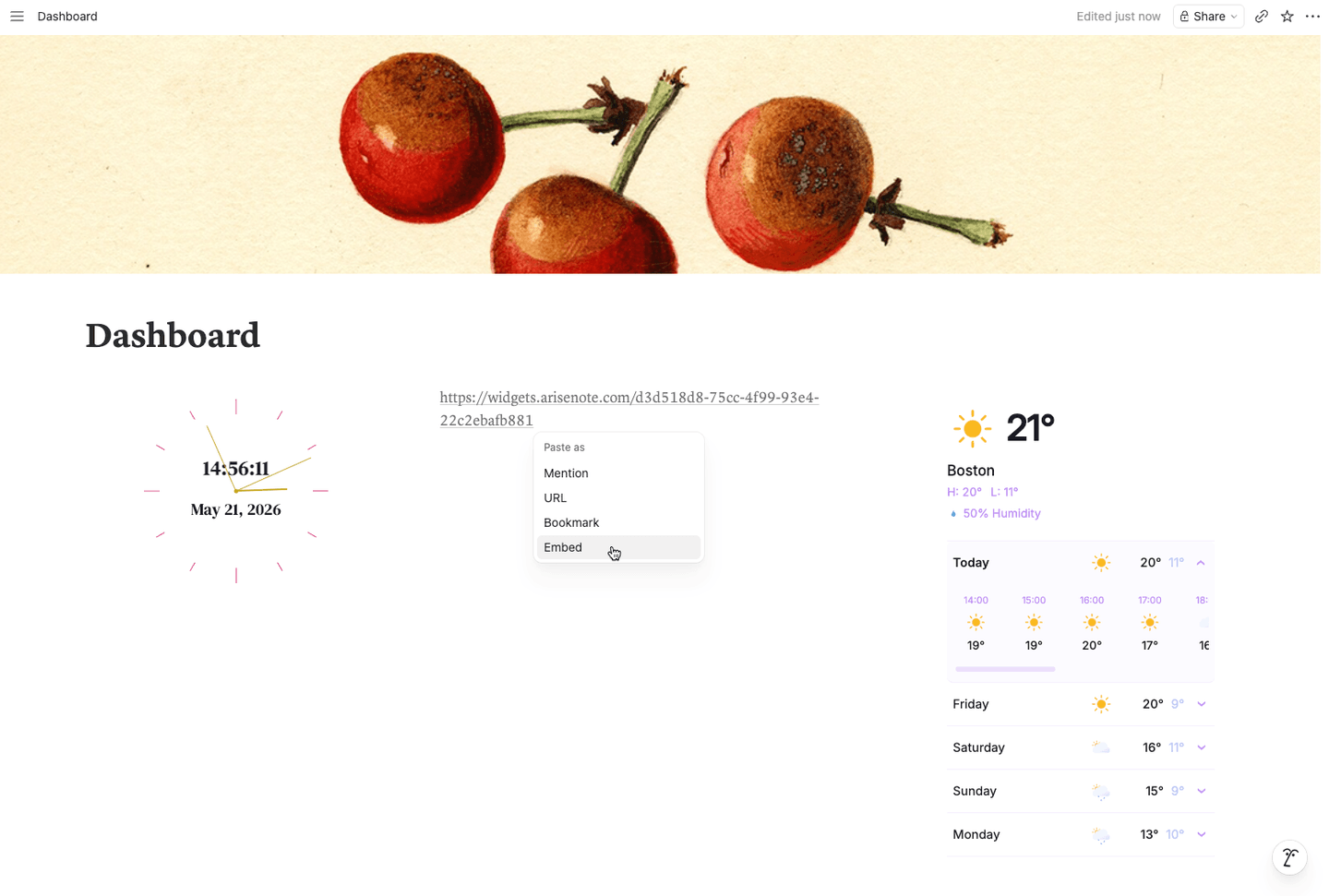
- Open your Notion page
- Type
/embedto open embed block - Paste your widget URL
- Resize the embed to your preference
- Done! Your widget is now live
Sizing Recommendations
Optimal embed sizes for different widgets:
- Heatmap: 800px width Ć 200px height
- Levels: 400px Ć 200px
- Progress Bar: 600px Ć 100px
- Streak Counter: 300px Ć 150px
- Statistics: 800px Ć 400px
Widget Configuration
Advanced Settings
Date Range
Control which data is displayed:
- Last 7 days
- Last 30 days
- Last 90 days
- Last year
- Custom range
- All time
Filters
Refine which database entries are included:
// Example filter configuration
{
"status": "completed",
"priority": ["high", "medium"],
"tags": {
"include": ["important"],
"exclude": ["archived"]
}
}
Aggregation
Choose how data is combined:
- Count - Number of completions
- Sum - Total of numeric values
- Average - Mean value
- Max - Highest value
- Unique - Distinct items
Real-time Updates
Configure update behavior:
Update Frequency:
- Instant (webhooks, Premium)
- Every 15 minutes (Free)
- Every hour
- Daily
- Manual only
Cache Settings:
- Cache duration
- Force refresh option
- Background sync
Managing Widgets
Widget Dashboard
Your widget dashboard shows:
- All created widgets
- Status (active/inactive)
- Last updated time
- View count
- Performance metrics
Editing Widgets
To modify an existing widget:
- Navigate to Widgets
- Click on the widget name
- Make your changes
- Click Save
- Changes reflect in embedded widgets instantly
Note: You don't need to re-embed the widget after editing!
Duplicating Widgets
Create copies of existing widgets:
- Click ā¢ā¢ā¢ menu on widget
- Select Duplicate
- Modify as needed
- Useful for creating variations
Archiving Widgets
Archive widgets you no longer need:
- Archived widgets don't count toward plan limits
- Can be restored later
- Embeds will show "Widget Archived" message
- Data is preserved
Deleting Widgets
Permanently remove widgets:
ā ļø Warning: This action cannot be undone!
- Embedded widgets will stop working
- All configuration is lost
- Historical data may be deleted
Troubleshooting
Widget Not Updating
If your widget shows stale data:
- Check Notion database permissions
- Verify connection field mappings
- Clear widget cache
- Check for error messages
- Test connection in widget settings
Widget Shows "Access Denied"
Common causes:
- Database not shared with Notionarise
- Integration removed from page
- Notion connection expired
- Database was deleted/moved
Solution: Re-share the database with Notionarise integration
Widget Displays Incorrectly
If formatting looks wrong:
- Check embed size in Notion
- Verify widget responsive settings
- Test in different browsers
- Clear browser cache
- Check custom CSS conflicts
Performance Issues
If widget loads slowly:
- Reduce date range
- Limit database size
- Enable caching
- Optimize filters
- Contact support for large datasets
Best Practices
Organization
- Naming Convention: Use clear, consistent names
- Folders: Group related widgets (Premium)
- Tags: Add tags for easy filtering
- Documentation: Note widget purpose and connections
Performance
- Limit Data: Only load necessary date ranges
- Cache: Enable caching for faster loads
- Optimize Databases: Keep databases organized and pruned
- Monitor: Check widget performance metrics
Design
- Consistency: Use similar styles across widgets
- Readability: Ensure text is legible
- Colors: Match your Notion theme
- Spacing: Don't overcrowd the widget
Maintenance
- Regular Checks: Periodically verify widgets work correctly
- Update Connections: Keep field mappings current
- Review Filters: Ensure filters remain relevant
- Clean Up: Archive unused widgets
Next Steps
Now that you know how to create widgets:
- Explore advanced widget customization options
- Learn about widget templates (coming soon)
- Share widgets with your team (Premium)
- Check out the widget gallery for inspiration
Need help? Visit our FAQ or contact support for personalized assistance!